
Interactive Project Set-up
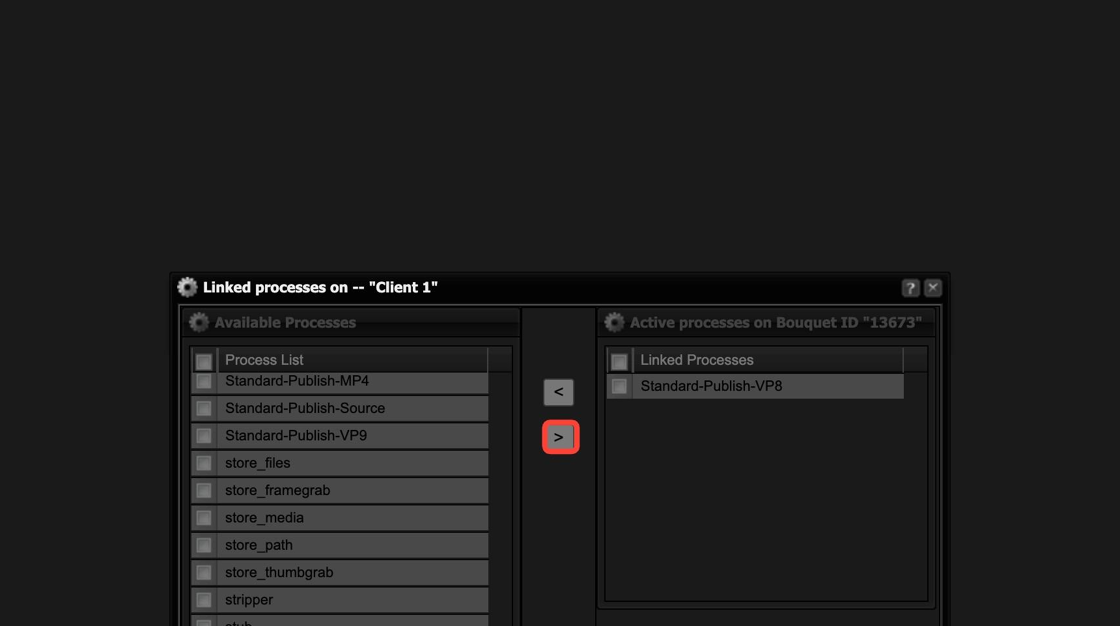
Back1. Open the bouquet that you want to add the screen to. Click on "Process Links" to add the publish format.

2. Select Standard-Publish-VP8 by clicking in the white box.

3. Click on the greater than sign to move your selection to the right.
4. Click "Done" to save.

5. Click "New Player Channel" to add a screen to your bouquet.

6. Name your screen.

7. Set the screen status to "active" by selecting it from the drop-down.

8. Select the screen aspect ratio from the drop-down.

9. Click "Save". The screen will open in the middle panel.

10. Drag a full screen layout onto your screen.

11. Click "Save".

12. Right-click on the screen.

13. Hover over "Layer", move to the right and click "Layer Properties".

14. Rename the layer to interactive_child and click "Done".

15. Double-click on the layer, a window will pop up.

16. Click on "New Content List".

17. Name the content list.

18. Click "Save".

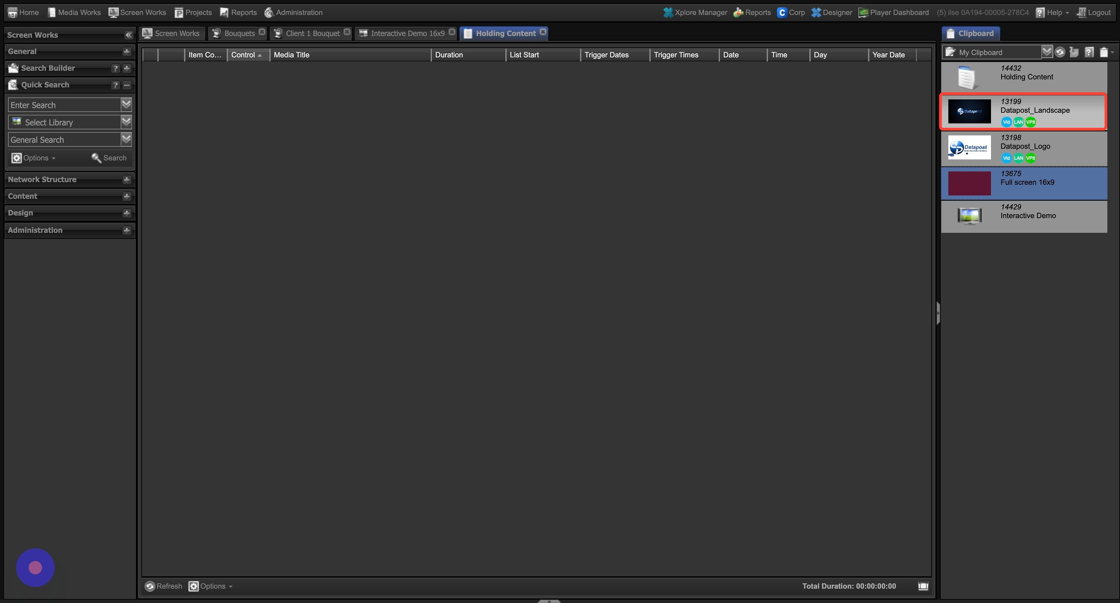
19. Drag the holding content into your content list from your clipboard.
20. Right-click on the last item in the content list.

21. Hover over "List_actions", move to the right and click "Loop".

22. Close the content list by clicking on the cross.

23. Righ-click on the screen.

24. Hover over "Layout", move to the right and click "New layer". A new layer will appear.

25. Right-click on the "New Layer". Hover over "Layer", move to the right and click on "Layer Properties".

26. Rename the layer to interactive.
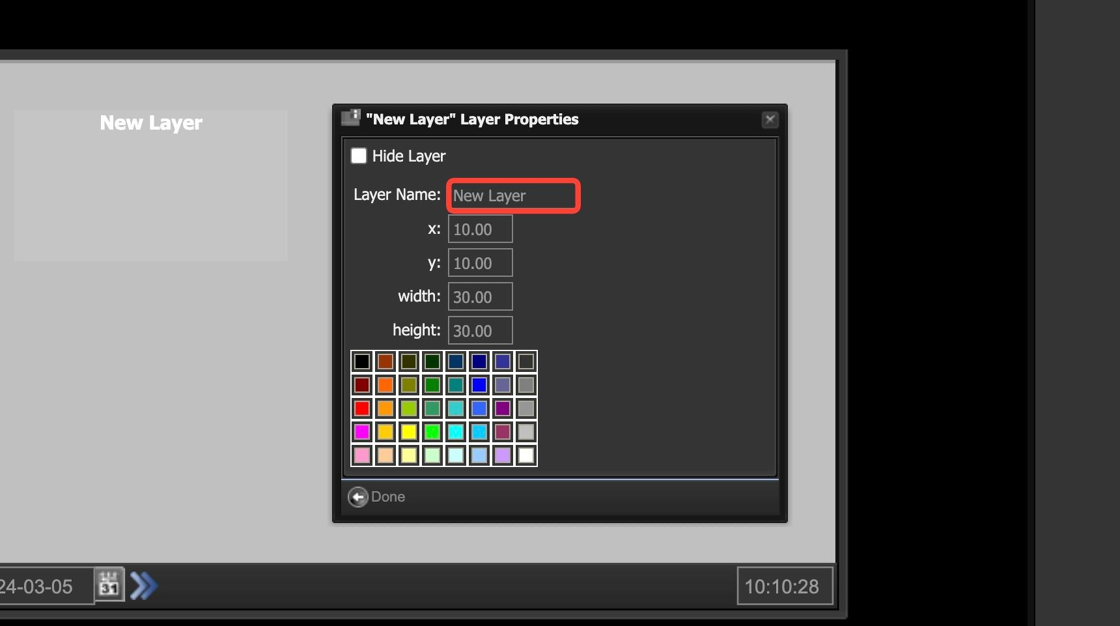
27. Change x to 0.00, y to 0.00, width to 100.00 and height to 100.00.

28. Click "Done".

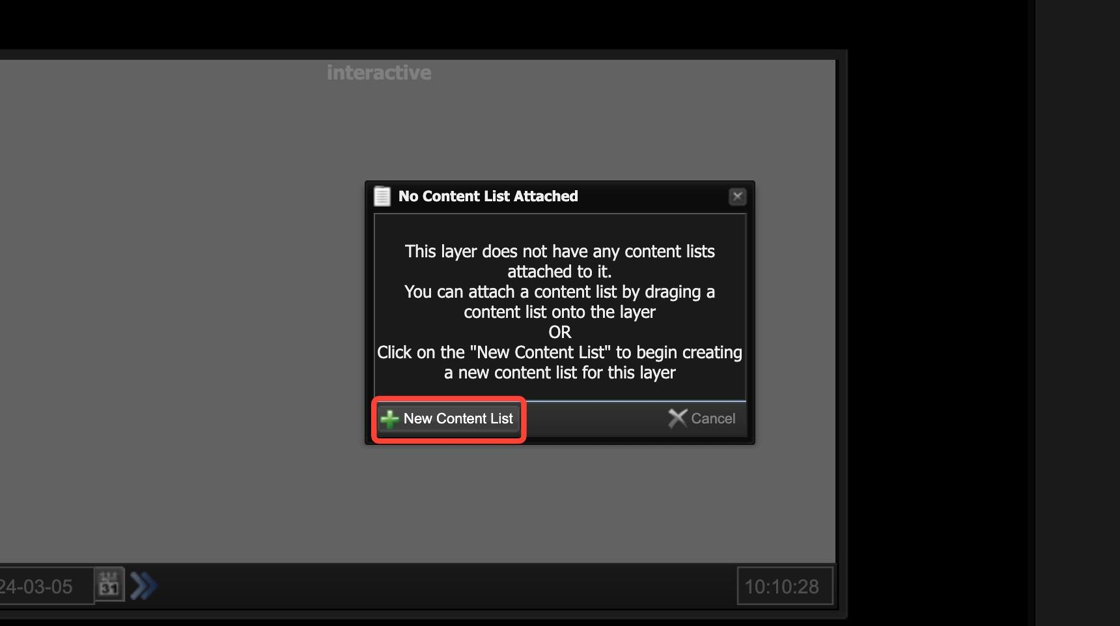
29. Double-click on the screen, a window will appear.

30. Click on "New Content List".
31. Name your content list.

32. Click on "Save".
